
Video tutorials
Devign video tutorials
Short videos for the Devign Launcher, Reactor and every game. Pick the problem you have, or browse a topic.
What is going wrong?
Pick the closest one and we open the video that fixes it.
All videos
Devign Launcher
Create your account, redeem your beta key, link TikTok, install and play a game, and choose what gifts, likes and follows do.
 0:36
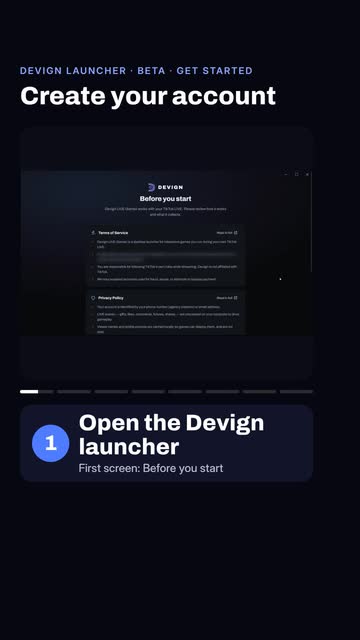
0:36How to create a Devign account
Open the Devign launcher, accept the terms, choose Email sign-in, tap the new-user link, fill in your name, email and password, then press Create account.
 0:32
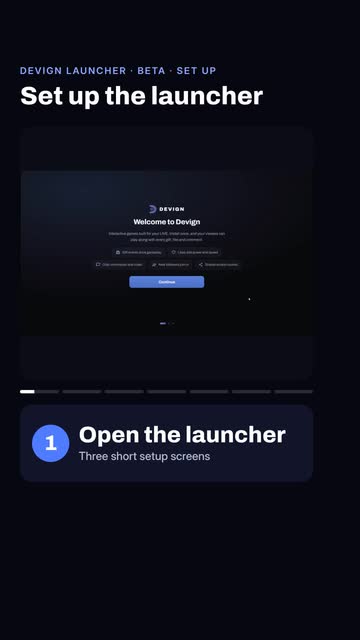
0:32How to set up the Devign launcher after you sign in
After you sign in, the launcher shows three quick setup screens: press Continue twice, wait for the four checks to turn green, then press Finish to land on Home.
 0:33
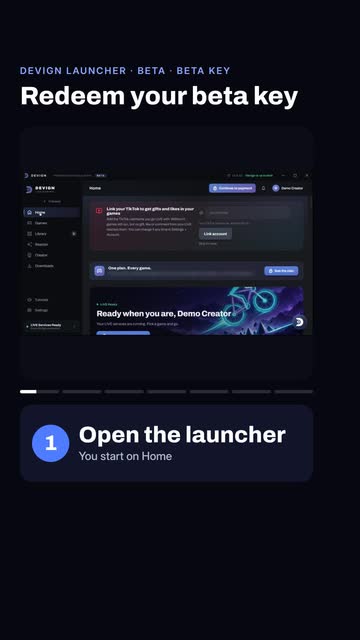
0:33How to redeem your Devign beta key
In the launcher open Settings, then Billing, paste your key into the key box and press Redeem. Every game unlocks with a valid beta key.
 0:37
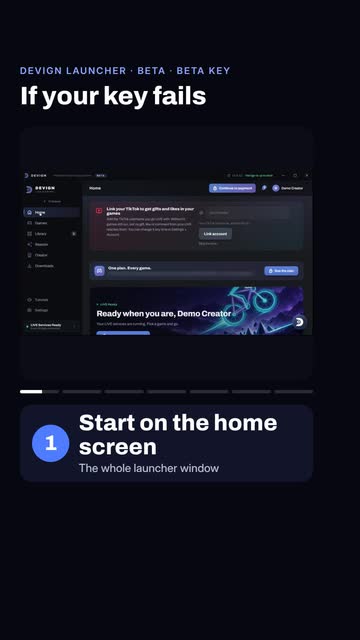
0:37Beta key rejected? How to fix it
If the launcher rejects your key: check the spelling when it says not recognised, ask the sender for a new key when it says already used or expired, and wait an hour after too many attempts.
 0:27
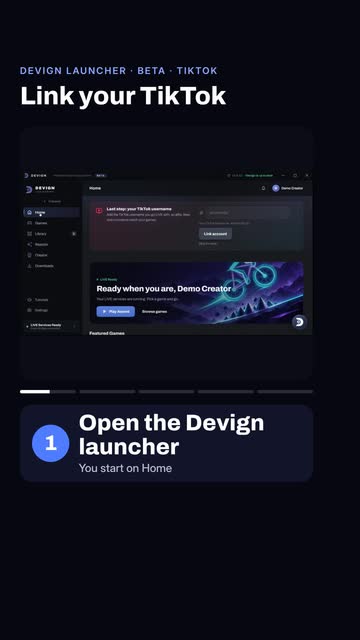
0:27How to link your TikTok account to the Devign launcher
Open Settings in the launcher, type your TikTok name without the @ sign into the Account page box, and press Link account.
 0:33
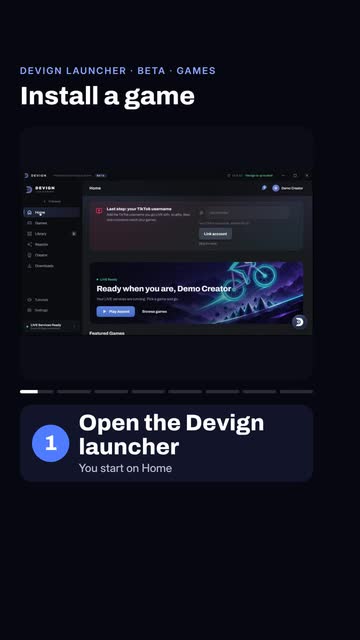
0:33How to install a game in the Devign launcher
Press Games in the left menu, search for the game, open its page, press Install and confirm. The download takes about a minute, then the button changes to Play.
 0:26
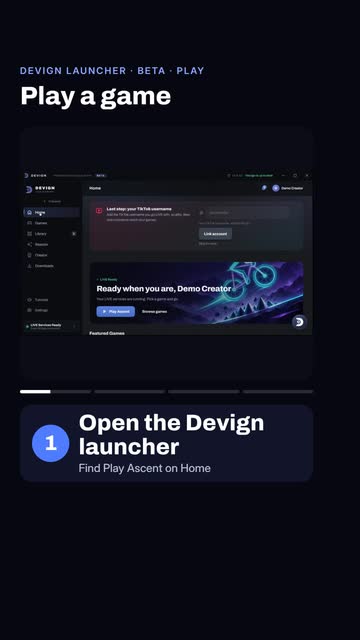
0:26How to play a game from the Devign launcher
Press Play on an installed game, wait a few seconds for the game window to load, then press Play in the game menu. A missing TikTok link does not stop the game from running.
 0:31
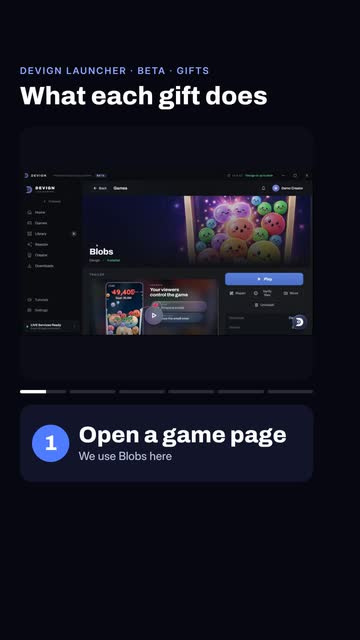
0:31How to choose what each TikTok gift does in a game
Open a game page, scroll to Live events, open the Gifts list and use the small arrow beside a gift to set its strength from 1 (gentle) to 5 (strongest). The launcher saves it automatically.
 0:32
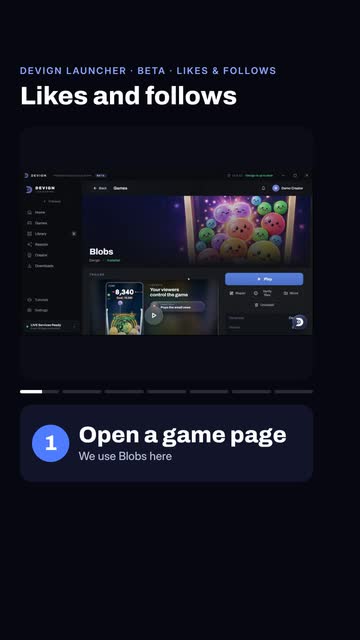
0:32How to set likes and follows in a Devign game
On a game page, scroll to Live events: pick a Likes strength from 1 to 5, set the likes goal, then choose what a new follower does under Follows. Settings save automatically.
Reactor
Set up Reactor, put the overlay in OBS or TikTok LIVE Studio, build rules, add goals and top supporters, and read chat out loud.
 0:34
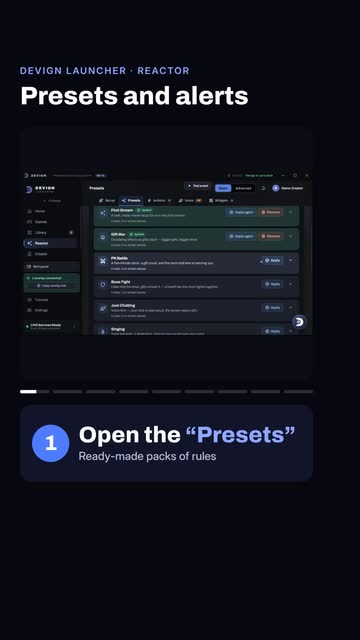
0:34Reactor presets and test alerts for TikTok LIVE
Open the Presets tab, pick a pack such as PK Battle and press Apply, then use Test event to try a gift or a follow. Test events never reach TikTok.
 0:28
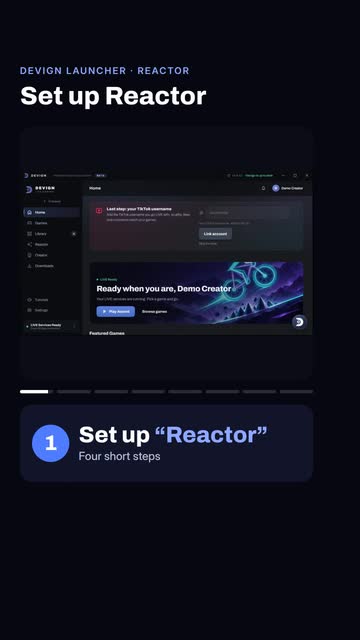
0:28How to set up Reactor for your TikTok LIVE
Click Reactor in the launcher sidebar, press Set up first, choose your stream kind, keep the switches you want and press Set up my stream. Four rules are ready.
 0:30
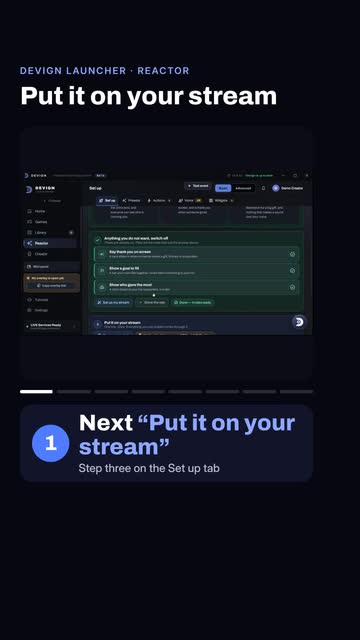
0:30How to add Reactor to OBS or TikTok LIVE Studio
Press Copy overlay link, add a Browser source in OBS or LIVE Studio, paste the link and set the size to 1080 by 1920. When the box turns green, press Test a gift. Keep the launcher open.
 0:31
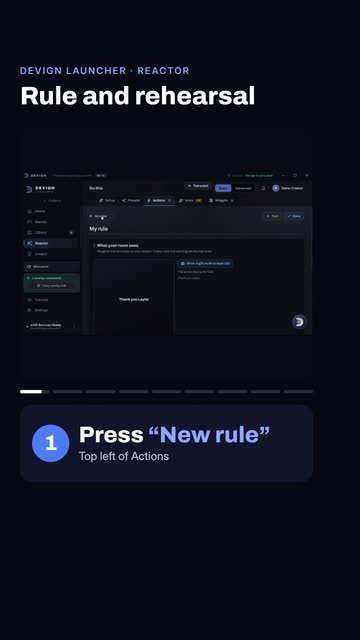
0:31How to build your first Reactor rule and rehearse
On Actions press New rule, add an effect such as Celebrate, test it and save it. Then press Rehearse for a 90-second run with invented viewers. Nothing reaches TikTok.
 0:27
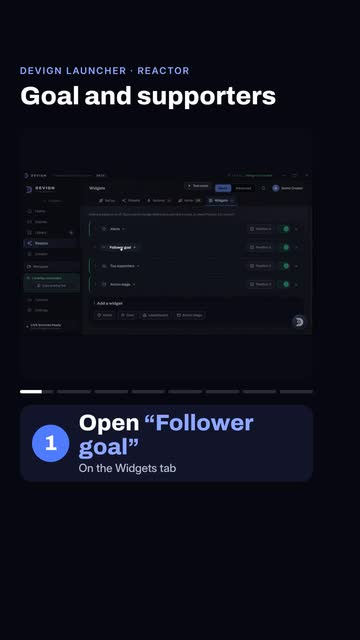
0:27How to add a follower goal and a top-supporters board
Open Follower goal under Widgets and type a small target, then use Test event to send a follow or a gift and watch the goal bar and the Top supporters board update.
 0:35
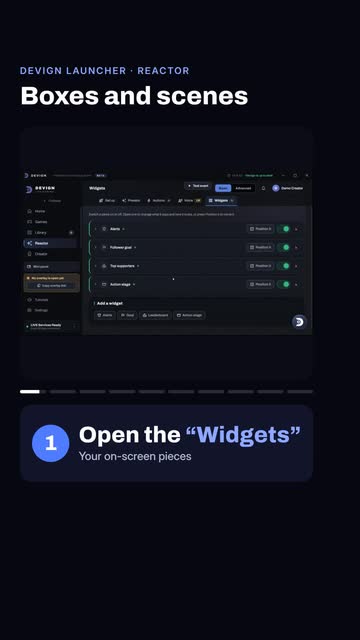
0:35How to move overlay boxes and switch scenes in Reactor
Press Position on a widget such as Alerts and drag it, then use Advanced, Scenes, New scene to add a second scene. One link follows your scene, so you need no second source.
 0:26
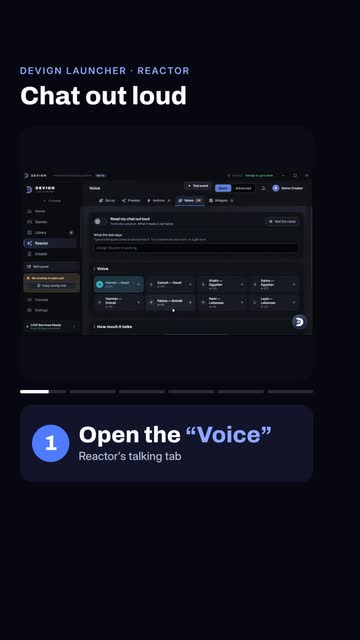
0:26How to make Reactor read your TikTok LIVE chat out loud
Open the Voice tab, switch on Read my chat out loud and pick a voice from the cards. On stream, your overlay reads the chat aloud.
Game guides
One short guide per interactive TikTok LIVE game: what your viewers' gifts, likes, follows and chat commands do.
 0:30
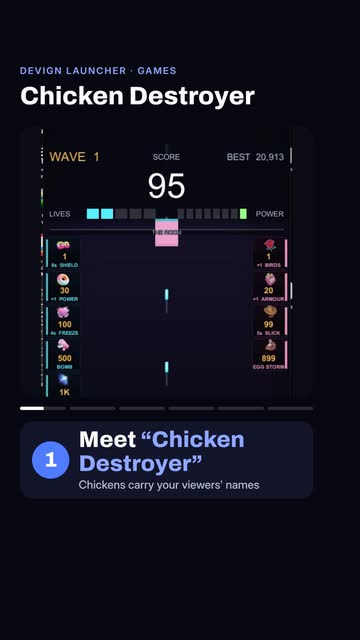
0:30Chicken Destroyer: how gifts and chat play the game
Chicken Destroyer is a wave shooter where every chicken wears a viewer's name: nine waves lead to a boss, gifts help or cause trouble, and chat votes on an upgrade every third wave.
 0:27
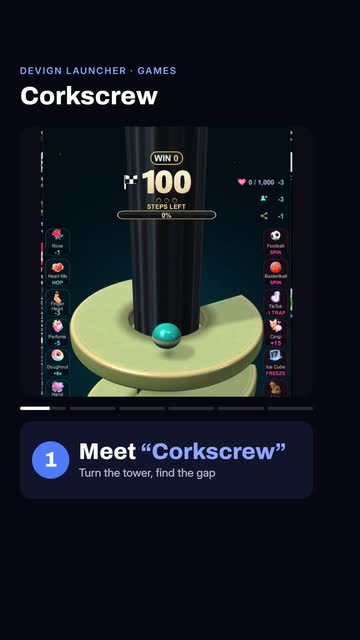
0:27Corkscrew: how gifts and chat play the game
Corkscrew: turn the tower to find the gap, and three rings in a row set the ball on fire. Gifts dive the ball, bank a win, lay traps or spin the tower, and chat can type hop, smash or slow.
 0:27
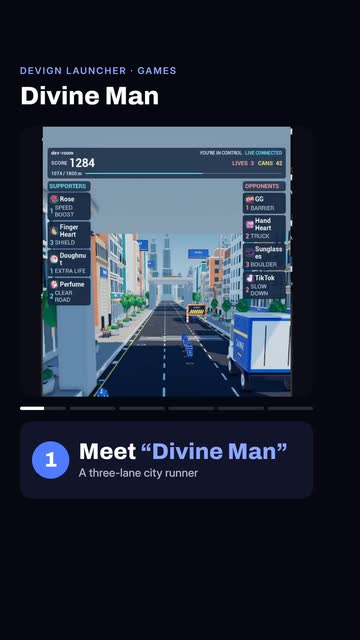
0:27Divine Man: how gifts and chat play the game
Divine Man is a three-lane city runner: supporters add turbo, shields and health, opponents send crates, trucks and boulders, and banners name the viewer who did it.
 0:26
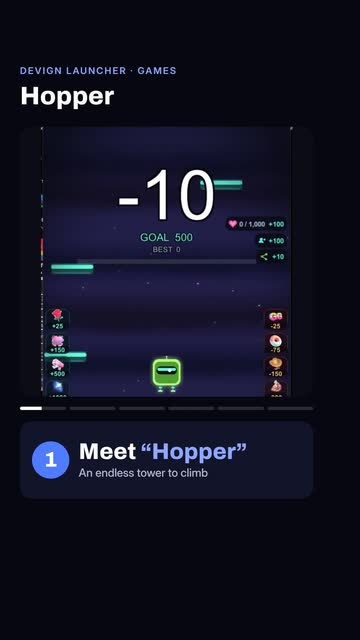
0:26Hopper: how gifts and chat play the game
Hopper is an endless bounce up a tower with no game over: gifts launch you up, likes drag you back down, and a follow sends trouble into your path.
 0:30
0:30Orbit Merge: how gifts and chat play the game
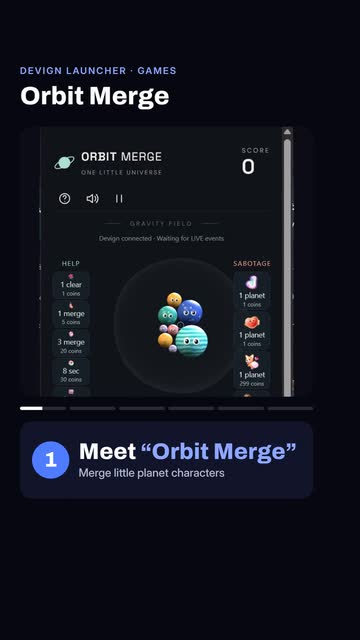
Orbit Merge: aim and launch little planets and merge matching pairs. Helping gifts clear or merge planets or slow time, sabotage gifts crowd the orbit, likes fill a goal, and chat can type merge or slow.
 0:28
0:28Plummet: how gifts and chat play the game
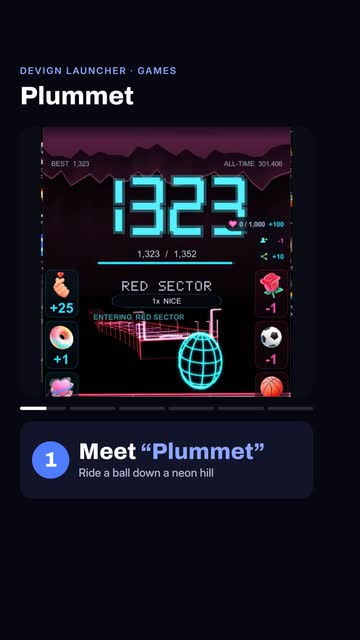
Plummet: ride a ball down a neon hillside while your room decides how far you get. Viewers shove the ball sideways or haul it back up, a gift can drop a barrier, and chat can type dive, wait, left or right.
 0:31
0:31Relay: how gifts and chat play the game
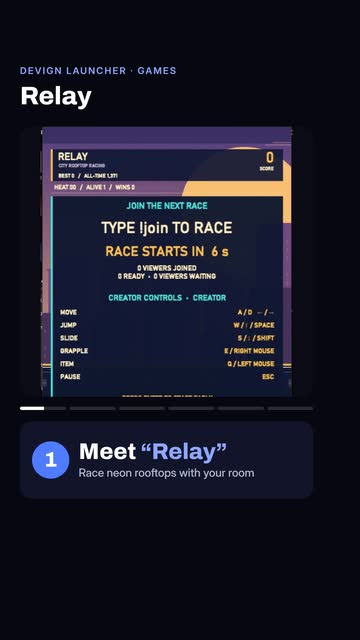
Relay is a neon rooftop race: viewers type join to enter, one survivor wins each heat, gifts boost runners, freeze rivals and launch rockets, and chat can type jump, dash, grapple or shield.
 0:29
0:29Swish: how gifts and chat play the game
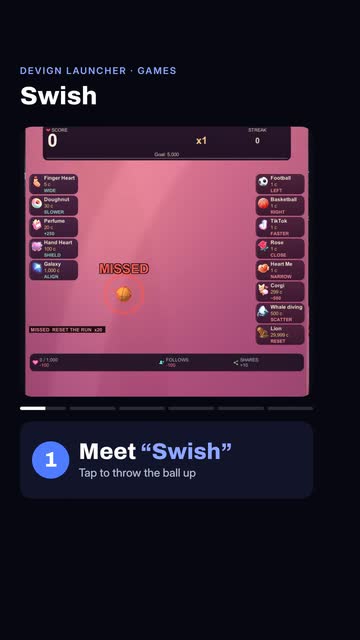
Swish: tap to throw the ball up through red rings, each ring scoring hearts. Some gifts widen the rings or give a shield, others narrow or scatter them, and chat can type up, hold, left or right.
 0:29
0:29Tumbler: how gifts and chat play the game
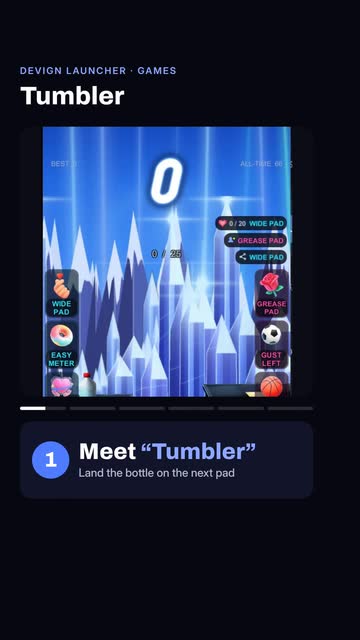
Tumbler: hold and release to land the bottle on the next pad. Helping gifts widen the pad or lock the meter, trouble gifts narrow it or gust you off, and chat can type nudge, hold, left or right.
 0:27
0:27Updraft: how gifts and chat play the game
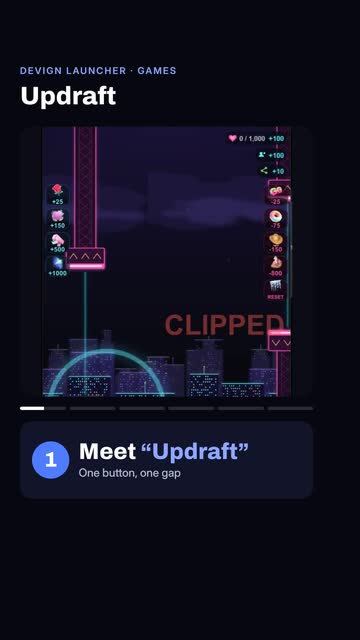
Updraft: one button, one gap, no landing. Gifts throw an updraft under the wing, likes drag you down, follows tighten the gap, and chat can shout flap, hover or surge.
Still stuck?
Tell us which step you reached and what you saw. We answer on WhatsApp and by email.
Written guides
The same steps as text, open any guide to read it.
Get started
Sign in to the launcherAgency creators sign in with their phone. Everyone else uses email, Google or TikTok.5 steps
- Open Devign Launcher. The sign-in screen opens by itself.
- With the Devign agency? Pick Devign creator, type your Phone number and press Send code.
- Type the code WhatsApp sends you and press Verify and continue.
- Not with the agency? Pick Email sign-in and press Sign in, or use Continue with Google or Continue with TikTok.
- Last step: type your TikTok username and press Link account. The games use it to find your LIVE.
Tip: No WhatsApp code? Check your number starts with your country code, wait one minute, then press Send code again.
Create an accountNew here and not with the agency? Make an account in one minute.5 steps
- On the sign-in screen, pick Email sign-in.
- Press Create account.
- Type your email and a password, then open the email we send you to confirm it.
- No password wanted? Press Continue with Google or Continue with TikTok instead.
- Prefer your browser? Press Sign in on the website. TikTok, WhatsApp, Google and email all work there.
Tip: Agency creators do not need a new account. Pick Devign creator and use the same phone number as your Devign Creator app.
Redeem a beta keyGot a beta key by email? It unlocks every game.5 steps
- Sign in first. The key is added to the account you are signed in to.
- Open Settings and go to Billing.
- Press I have a beta key.
- Paste the key from your email and press Redeem.
- Done. Every game is unlocked on this account.
Tip: A key works once, on one account. Copy it with no spaces. If it still says the key is wrong, ask us in Gamer & Creator Support.
Install and play a gamePick a game, install it once, then play it with one press.5 steps
- Open Games and press a game to open its page.
- Press Install. You can watch the download at the bottom of the launcher.
- When it is done, press Play. The LIVE services start with the game.
- Your installed games always wait for you in Library.
- To close the game, press Stop game.
Tip: Game will not start? Press Repair on its page. It fixes broken files and keeps your settings.
Go LIVE
Add a game to TikTok LIVE StudioPut the game on your LIVE so your viewers can play it with gifts.6 steps
- Start the game from the launcher first.
- Open TikTok LIVE Studio on the same PC.
- Click Add source and choose Game capture. Pick the Devign game window.
- Black screen? Delete that source and add Window capture instead.
- Drag the corners so the game fills your LIVE screen.
- Go LIVE. Gifts, likes and follows now reach the game.
Tip: Want alerts and goals on top of the game? Open Reactor, press Copy link and add that link in LIVE Studio as a web source.
Choose what each gift doesEvery game has its own gift list. Swap any gift and set how strong it is.5 steps
- Install the game first, then open its page from Games or Library.
- Scroll down to LIVE EVENTS and open the Your viewers tab.
- Press Choose gift to swap a gift, or Add gift to add another one.
- Set Strength from 1 to 5 to choose how hard each gift hits.
- Your changes save by themselves. Most games pick them up while they run.
Tip: Made a mess? Press Reset to default to go back to the game's own gifts.
Set up likes, follows and chatDecide what likes, new followers and chat words do in the game.5 steps
- Open the game's page and go to LIVE EVENTS, then Your viewers.
- Find Likes and set the Goal: how many likes it takes to fill it.
- Find Follows and choose what a new follower does.
- Press Add word to add chat words, so viewers can play by typing.
- Set anything you do not want to Off.
Tip: The The run and On screen tabs hold the rest: how a run starts and ends, and what shows on screen.
Track and test your LIVE with ReactorReactor shows every gift, like and follow, and lets you test before anyone is watching.5 steps
- Open Reactor in the sidebar. If it asks, press Start LIVE services.
- First time? Open Set up, pick what you want on your stream, then copy your overlay link.
- Press Test event and try Test a gift, Test a follow or Test likes. Nothing reaches TikTok.
- Switch on Advanced, open Rehearsal and press Start the rehearsal to fake a busy LIVE.
- Events not arriving? Check Connection and Diagnostics.
Tip: Once it is set up, your overlay runs on its own. You only open Reactor to change it.
Help and Creator
Report a bugSomething broke? Tell the team in under a minute.5 steps
- Open Settings and go to Report a problem.
- Fill in What went wrong.
- Fill in What you were doing: which game, and what you pressed.
- Press Send report. The details under Sent with this report go with it to help us find the problem.
- Reports carry no name, so nobody can reply. To get an answer, write to us in Gamer & Creator Support.
Tip: The more exact you are, the faster we fix it. The game name and the time it happened help most.
Use the Creator sectionYour Devign Creator app, inside the launcher: level, points, rewards, campaigns and appeals.5 steps
- Sign in with Devign creator, using the same phone number as your Devign Creator app.
- Open Creator in the sidebar.
- Home shows your level and points. Rewards is where you spend them.
- Join brand campaigns in Campaigns.
- Got a violation? Send an appeal in Appeals.
Tip: Questions about payouts or your level? Ask in Gamer & Creator Support.
Still stuck? Ask us in Gamer & Creator Support. It is the round button in the corner of the launcher.